I’ve been looking for the right adjustments to my programming environment for a while now.
Before 2025, I programmed with my laptop, and I was happy with that. My laptop was both the client (editor, command line interface) and the server. For me and my workflows (regular modern web development, medium scale data engineering), the complexity of setting up remote environment always outweighed any benefits.
CLI agents changed all of that in a few ways.
First, the temporal experience of work changed. Before, I was either programming or I wasn’t. If I wasn’t programming, I might be thinking about what I’d do when I sat down at my computer, and I may jot down some notes, but there wasn’t a way to get work done without sitting at a computer.
Second, what I need from my environment changed. Before, I liked a single big screen - I’d have my browser’s debug tools, my editor, my terminal, and some team communication tool all open, and I’d want to simultaneously view at least 2 or 3 of the 4.
Now, I find I want to deeply work on something over the course of an hour, and then hop on the train or go for a walk while the agents work, and the need to babysit arises.
Visually, I’m now almost entirely saturated with the agent conversation itself. Many of the details that required mutli-window context (CSS tweaks, Typescript and lint errors, parsing through server logs and connecting them to lines in the source code) are things that I by and large don’t worry about anymore.
I pay close attention to what is happening, but that attention is focused on closely parsing the agent’s own description of what it’s doing and why, alongside a review of the data models and abstractions in the generated code. I don’t really need browser debug tools, and looking at the code and terminal are two separate activities rather than a tight feedback loop.
The effects of these changes were actually quite damaging to me. Of course, I felt a strong pull to change the way I worked partially out of a desire for increased productivity. A larger part was the need to free myself from having to periodically check my computer. If I was going to kick off a run that may run for some time, the impact of small nudges from me made the difference between wasted time and money and incredible time savings and productivity. I hated kicking something off, leaving to go do something, and feeling such a magnetic pull back to check on things, and I needed to free myself.
Prior Attempts
I tried a lot of the apps for this - Happy, Omnara, etc. I even put a lot of work into building my own. There were a few things I think I did a great job in my own rendition of this - the transcription used Gemini Flash with the recent conversation as context (instead of Whisper or another pure STT model), and that made file and symbol references much more accurate. I also built a great review screen that integrated Diffs with that transcription so you could tap a change, speak a few lines, and scroll and repeat with full confidence that the agent would get the proper context.
There were 3 things I couldn’t get past.
First, I needed to be able to close my computer and have everything keep running.
Second, I needed the way I worked on my computer and the way I continued on my phone or iPad to be as close as possible in order for the handoff to be seamless. When running Claude, OpenCode, or Pi (I’m settling into Pi, but used each of these over the duration of this time period) on my computer, I was relying on all sorts of things that weren’t available in the remote environment.
Third, I needed a real terminal. I wanted minor adjustments and control over where the agent spawns, and I wanted to run my own commands to fix things sometimes.
The Setup
The VPS + Bash Setup
I knew I needed to move my work to
I set up a VPS and the following alias’s in my ~/.bash_env:
Show shell helper
mosh_lsh() {
  if [ "$#" -eq 0 ]; then
    mosh -p 60000 --ssh="ssh -o BatchMode=yes -o StrictHostKeyChecking=accept-new" user@<MY_VM_IP>
  else
    ssh -o BatchMode=yes -o StrictHostKeyChecking=accept-new user@<MY_VM_IP> "$@"
  fi
}
If I run mosh_lsh with no arguments, I’m in the VM. If I run mosh_lsh ls, it runs ls via the existing mosh session and returns the result.
This command is useful for myself, but it’s also incredibly useful for agents setting up development environments on my VPS. I also have box_rsync and a few others primarily for agent use.
Another command I run is zed_box ~/path/to/folder/on/vps (opens Zed in remote mode to that file system).
Why not Fly Sprites, Cloudflare Sandboxes, or something ephemeral?
I know there’s lots of tooling for reproducible development environments, but why would I force something so complicated as my personal configuration to be reproducible when it doesn’t have to be? Even the difficulty of managing the GitHub login for each sandbox spawn exceeds the value of
Herdr
On my computer, I start work by running herdr_box <session_name>. That’s a shortcut for this:
Show Herdr helper
herdr_box() {
  if [ "$#" -eq 0 ]; then
    herdr --remote [email protected] --session personal
  elif [[ "$1" == -* ]]; then
    herdr --remote [email protected] "$@"
  else
    herdr --remote [email protected] --session "$1" "${@:2}"
  fi
}
It’s so easy, and it needs to be this easy. If it wasn’t, I would just start a local session.
/box-setup
I can open up pi in any directory on my computer, run the /box-setup custom prompt, and it will reliably:
- Provision a folder on the remote machine with the same path from the home directory
- Set up the git repo, remote, and execute a clone
- Analyze and copy any files that are outside of git that should also be moved over, such as
.envfiles or seed data - Install dependencies, run tests
With pi-session-search and pi-subagents, I can say “Take a look at every project I’ve run on this machine in the past 2 weeks and spawn a subagent with the /box-setup prompt to set it up”, and that’s it.
The Web
Now, I can run herdr_remote, but how do I connect from my phone or iPad? Rather than build an app, I set up Tailscale on all machines and set up a subdomain on my personal domain to the VPS’s Tailscale IP, and had Fable 5 modify ghostty-web’s full stack server to connect over the Herdr remote protocol.
Here’s the resulting codebase: vps-herdr-agent-server
This server runs on the VPS, and serves every Herdr session at /:session.
The result is that herdr_box my_session and yourdomain.com/my_session open to the exact same remote running Herdr session with each and every keystroke mirrored.
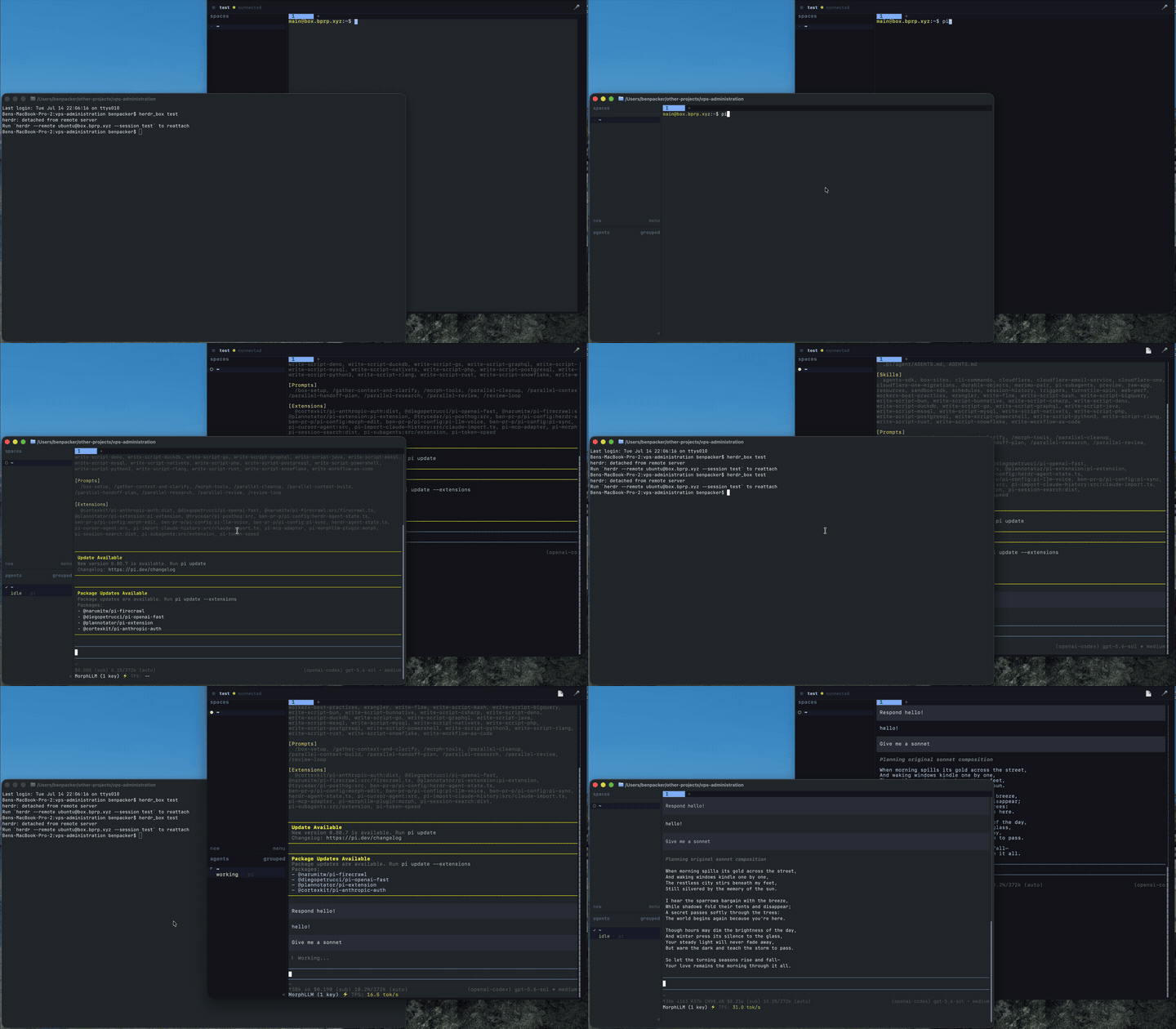
At this point, I was set and productive and started moving projects over, and I also had a setup I could continue to modify remotely - an agent could modify the running web server while I tell it to on the subway, restart it, and I could refresh to see the changes. It was this way that I fixed some bugs around mobile scrolling and added extra on screen hot keys (Shift + Tab, Esc, and a few other things that are hard on mobile).
I added the other following bigger features as well.
Voice Input
I missed the contextful voice input I had built for Pi and was using extensively locally, and it couldn’t run natively on the VPS, which of course has no microphone. If it did have a microphone, it would be really far away from me!
Luckily, my Pi extension accepts a wav file and not just live audio - a feature I had added so that if I recorded something but had a connectivity issue I wouldn’t lose my audio progress - and this was really easy to hook into it.
Now, there’s a feature that records browser audio, deposits it on the VPS’s disk, and then calls /transcribe /path/to/file.wav to get it into the remote Pi session.
This is a real delight and works very well.
Better Reading Experience
I had Fable built a simple session renderer. It just translates Pi’s jsonl format to Markdown, more or less, with a record and send button that reproduces the connection to pi-llm-voice.
The Result
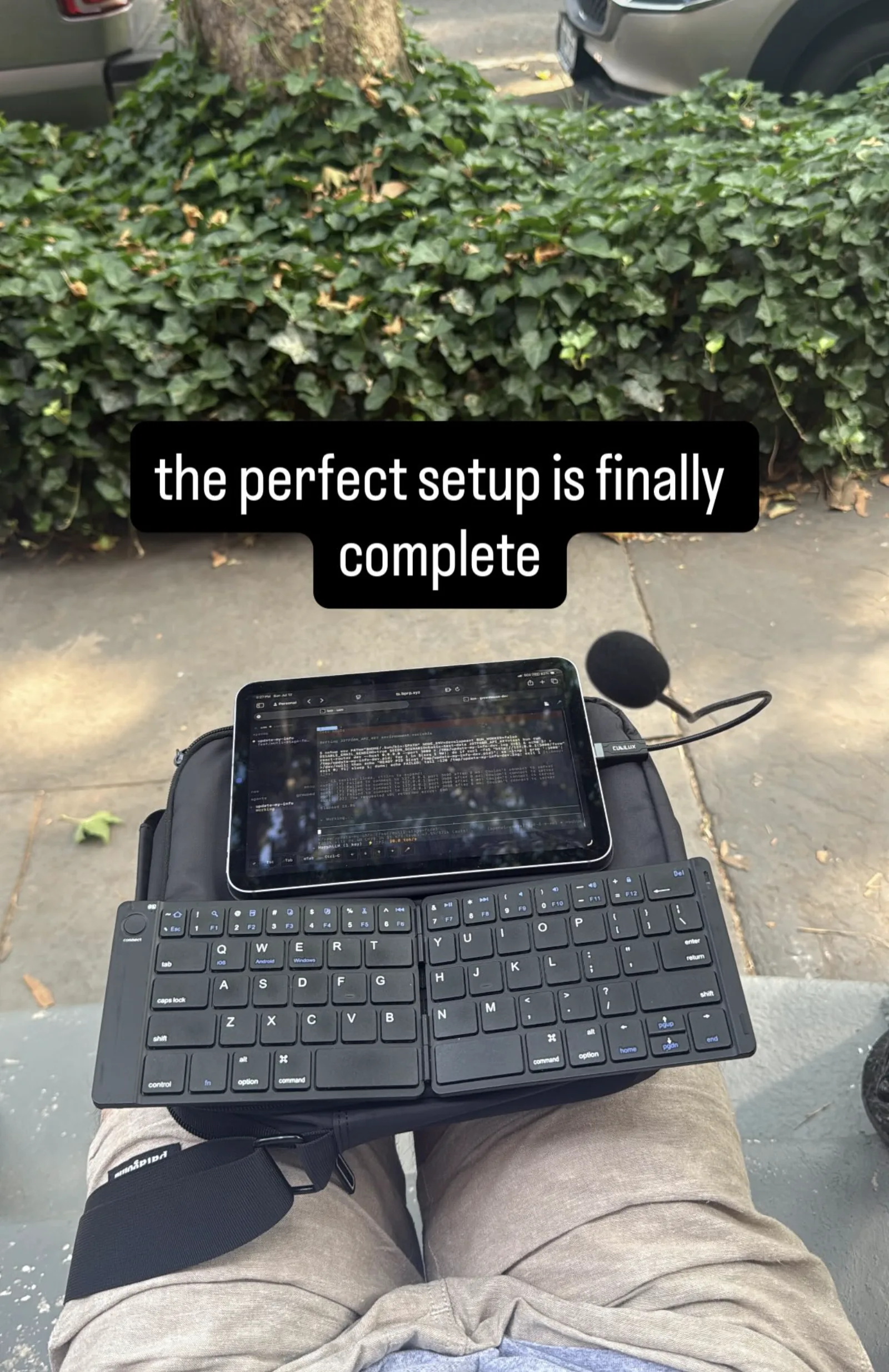
I am so happy. Here I am getting my work done for the week while my wife shops at the pop up thrift store underneath this stoop, having only carried an iPad mini and teensy folding keyboard around.
Some Lessons
First, customize and aim big: This setup is deeply custom to me and what I care about, and in today’s day and age, it can afford to be. With something as personal and important as how free I am with my working time, there is no reason not to use AI to achieve the absolutely perfect set up for you.
Second, Make sure it can modify itself: I got a lot done with this after the initial setup because this was web instead of a native app. With the native app approach, I had it trigger expo rebuilds, but those took a long time and broke much more often. Only being able to work on the native app while at my computer was a big drain for something that was a side project that I mostly want to work at while on the train or at the gym.
From My Agent To Yours
I asked “Analyze my Pi sessions in this directory and read this blog post. Produce a Markdown document intended for another CLI agent of everything it needs to do in order to reproduce this setup.”
Here’s that output:
Show and copy the full remote-workspace prompt
# Reproduce the Remote Pi + Herdr Workspace
This is an implementation runbook for a CLI agent. It reconstructs the working setup described in the accompanying blog post from the Pi sessions run in this directory. It deliberately omits credentials, API keys, deploy keys, and private configuration values.
## Target outcome
A laptop remains the control client; a persistent Ubuntu VPS is the execution host. The user can:
- work in a persistent remote [Herdr](https://herdr.dev/) session from a native terminal (`herdr_box <session>`);
- open the **same** session from a phone/tablet browser at `https://<host>/<session>`;
- use Pi, its shared config, prompts, skills, extensions, and synced session history on the VPS;
- bootstrap any local Git project onto the VPS with `/box-setup`;
- use browser microphone input to inject a WAV into Pi's voice extension;
- edit remote projects with Zed over SSH.
The browser terminal is shell access. Keep it tailnet-only or put it behind strong identity-aware access before exposing anything.
---
## 1. Prerequisites and decisions
1. Provision a persistent Ubuntu 24.04-class VPS with a public IP, a DNS hostname, and an SSH user. This setup uses a non-root `ubuntu` user.
2. Set up SSH public-key authentication from the laptop. Verify noninteractive access:
ssh -o BatchMode=yes ubuntu@<host> 'hostname && id'
3. Install Tailscale on the laptop, VPS, and mobile devices; join them to the same tailnet. Do **not** rely on public reachability for the browser terminal.
4. Install locally: `ssh`, `rsync`, `mosh`, `herdr`, `git`, Zed (optional), and Pi.
5. On the VPS install: `git`, build tools needed by Node native modules, Node.js, npm, `mosh-server`, `herdr`, Pi, Tailscale, and GitHub CLI if private repository cloning is needed.
6. Give the VPS a read-only deploy key (or another least-privilege credential) for private Git repositories it must clone. Do not place a personal GitHub token in shell history or a Git repo.
Current deployment facts (for verification only; replace with your own):
- VPS: Ubuntu 24.04, `ubuntu` user.
- Herdr must be on the remote non-login `PATH`; the working deployment symlinks it at `/usr/local/bin/herdr`.
- Browser app: Node + Vite + `ghostty-web` + `node-pty`, bound to `127.0.0.1:8787`.
- Caddy is the HTTPS front end and binds to the VPS Tailscale address only.
---
## 2. Laptop shell helpers
Add equivalent functions to a shell file loaded by interactive and agent shells (the source setup uses `~/.bash_env`). Substitute your host/user/IP.
export BOX_SSH_HOST='[email protected]'
BOX_SSH_OPTS=(-o BatchMode=yes -o StrictHostKeyChecking=accept-new)
# Interactive uses mosh; commands intentionally use SSH for clean output.
mosh_box() {
if [ "$#" -eq 0 ]; then
mosh -p 60000 --ssh="ssh -o BatchMode=yes -o StrictHostKeyChecking=accept-new" \
"$BOX_SSH_HOST"
else
ssh "${BOX_SSH_OPTS[@]}" "$BOX_SSH_HOST" "$@"
fi
}
box_ssh() { ssh "${BOX_SSH_OPTS[@]}" "$BOX_SSH_HOST" "$@"; }
box_rsync() {
[ "$#" -ge 2 ] || { echo 'usage: box_rsync SRC... REMOTE_DEST' >&2; return 2; }
local args=("$@") last_index=$(($# - 1)) dest
dest="${args[$last_index]}"
[[ "$dest" == *:* ]] || args[$last_index]="$BOX_SSH_HOST:$dest"
rsync -azP -e 'ssh -o BatchMode=yes -o StrictHostKeyChecking=accept-new' "${args[@]}"
}
box_get() {
[ "$#" -eq 2 ] || { echo 'usage: box_get REMOTE_SRC LOCAL_DEST' >&2; return 2; }
local src="$1"
[[ "$src" == *:* ]] || src="$BOX_SSH_HOST:$src"
rsync -azP -e 'ssh -o BatchMode=yes -o StrictHostKeyChecking=accept-new' "$src" "$2"
}
box_scp() {
[ "$#" -ge 2 ] || { echo 'usage: box_scp SRC... REMOTE_DEST' >&2; return 2; }
local args=("$@") last_index=$(($# - 1)) dest
dest="${args[$last_index]}"
[[ "$dest" == *:* ]] || args[$last_index]="$BOX_SSH_HOST:$dest"
scp "${BOX_SSH_OPTS[@]}" "${args[@]}"
}
box_sftp() { sftp "${BOX_SSH_OPTS[@]}" "$BOX_SSH_HOST${1:+:$1}"; }
herdr_box() {
if [ "$#" -eq 0 ]; then
herdr --remote "$BOX_SSH_HOST" --session personal
elif [[ "$1" == -* ]]; then
herdr --remote "$BOX_SSH_HOST" "$@"
else
herdr --remote "$BOX_SSH_HOST" --session "$1" "${@:2}"
fi
}
zed_box() {
[ "$#" -eq 1 ] || { echo 'usage: zed_box REMOTE_PATH' >&2; return 2; }
local remote_path="$1"
[[ "$remote_path" == "$HOME" || "$remote_path" == "$HOME/"* ]] && \
remote_path="~${remote_path#"$HOME"}"
zed "ssh://[email protected]:${remote_path}"
}
Notes:
- A one-shot command must use SSH, not mosh. Mosh's terminal control sequences make captured agent output unreliable.
- The source setup uses UDP port `60000` for mosh. Ensure the provider/network firewall permits it, or use SSH only.
- Use `box_rsync` by default: it is incremental, compressed, preserves metadata, and reports progress.
- Zed obtains SSH authentication details from `~/.ssh/config`; remote connections can also be listed in `~/.config/zed/settings.json` under `ssh_connections`.
---
## 3. Configure the persistent VPS
1. Install and enable Tailscale:
curl -fsSL https://tailscale.com/install.sh | sh
sudo tailscale up --ssh --hostname box
tailscale status
Complete the interactive login URL. Record the VPS tailnet IPv4 address.
2. Install `mosh-server`, Node, npm, Git, build prerequisites, and `gh` as appropriate for your OS. Ensure `~/.local/bin` is in both `~/.profile` and `~/.bashrc`.
3. Install matching current versions of Herdr on laptop and VPS. Make the remote binary discoverable by non-login SSH, for example:
sudo ln -sf /home/ubuntu/.local/bin/herdr /usr/local/bin/herdr
command -v herdr && herdr --version
Remote attach can fail if Herdr versions do not match or if `herdr` is absent from non-login `PATH`.
4. Install Pi globally and verify it starts on the VPS. Set API keys/config only in root-readable/user-readable private files, never in the shared config repository.
5. Optional usability polish: set a friendly remote `PS1`, e.g. `[email protected]:<cwd>$`, without changing the actual OS hostname or account.
6. Verify the core loop:
herdr_box personal
# In the attached remote session: pi
Detach with Herdr's detach shortcut rather than killing the remote session.
---
## 4. Shared Pi configuration package
Create a private Git package repository, e.g. `your-org/pi-config`, with this shape:
pi-config/
package.json
install.sh
config/ # sanitized Pi settings/templates
extensions/
skills/
prompts/
themes/
Minimal `package.json`:
{
"name": "your-pi-config",
"private": true,
"pi": {
"extensions": ["./extensions"],
"skills": ["./skills"],
"prompts": ["./prompts"],
"themes": ["./themes"]
}
}
Install it on every machine via Pi's Git package mechanism, then run extension updates. Keep the editable checkout separately (the source system uses `~/pi-config`) and installs resources under `~/.pi/agent`.
**Never commit** `auth.json`, session logs, API keys, OAuth tokens, a real `models.json` with keys, or private SSH material. Use environment references or per-machine files with mode `0600`. Copy a local private `models.json` only when intentionally provisioning the VPS, then `chmod 600` it.
### Extensions that required special care
- A bundled multi-file extension must include **all** runtime sibling imports, not merely its entry `.js`. The original `pi-llm-voice` transfer initially failed because `pi-llm-voice.js` imported missing `./gemini.js`.
- Declare extension runtime dependencies in the package. The source package declares `@google/genai` and `node-mic` for its voice extension.
- Do not globally enable models unavailable on the VPS; model-name warnings make startup noisy and can hide genuine extension errors.
- Keep Morph or other provider keys outside Git in `~/.pi/agent/*.json` or an explicitly configured private key file, mode `0600`.
### Session history sync (optional but used here)
The source setup vendors a patched `pi-sync` extension in `extensions/pi-sync/` rather than depending directly on an upstream npm package. It uses an S3-compatible Latitude bucket and an encryption key file at:
~/.pi/agent/pi-sync-encryption-key
The same private encryption key must be securely provisioned to both machines. Latitude's endpoint in this deployment needs `region: us-east-1` and path-style bucket URLs. Test with `/pisync doctor`, then push/pull. Keep the vendor patch documented because ordinary extension updates must not overwrite it.
---
## 5. Create `/box-setup`
Put the complete current prompt at `prompts/box-setup.md` in the shared package. Its required behavior is:
1. Determine local `pwd`, folder name, Git remote/branch/status, and preserve the project’s workspace-relative path beneath the remote user’s home directory. Ask for confirmation when the destination is ambiguous or lies outside an agreed workspace root.
2. Create the remote parent, clone the same Git remote if absent, or inspect an existing checkout before modifying it.
3. Prefer Git for committed code. If uncommitted work is needed, use safe `box_rsync`, never synchronizing `.git`; exclude generated/heavy paths such as `node_modules`, `.next`, `dist`, `.turbo`, caches, virtualenvs, targets, and logs.
4. Identify necessary gitignored runtime assets from `.gitignore`, docs, scripts, Docker files, and configuration. Copy only required `.env*`, seed data, databases, fixtures, service-account files, and local data directories; report paths but never their contents.
5. Detect the project stack and lockfile; install correct dependencies (`npm ci`, `pnpm install --frozen-lockfile`, `uv sync`, `go mod download`, etc.). Add missing core tooling only when needed.
6. Run at least one appropriate test, typecheck, lint, build, or smoke test on the VPS.
7. Report remote path, branch/commit, copied ancillary paths, added tools/dependencies, validation result, and manual follow-ups.
The actual complete prompt used by this setup is available at:
~/.pi/agent/git/github.com/ben-pr-p/pi-config/prompts/box-setup.md
When rebuilding elsewhere, retain the safety rules: no secret output, no destructive deletes, no broad destructive sync, and no production-service changes without explicit instruction.
---
## 6. Browser terminal: `ghostty-web` + Herdr
Use the public implementation as the reference rather than rebuilding from the early plan:
https://github.com/ben-pr-p/vps-herdr-agent-server
Clone it to the VPS, install dependencies, build, typecheck, and use its deployment script/readme. The verified repository layout is:
index.html
src/client.ts # terminal UI, mobile keys, mouse bridge
src/recorder.ts # browser mic → 16kHz mono WAV
server/server.ts # HTTP/API + WebSocket + node-pty bridge
caddy/Caddyfile
caddy/*.env.example
systemd/
setup.sh
### Required behavior
- `GET /` lists Herdr sessions via `herdr session list --json`.
- `GET /:session` renders a terminal. Unknown session names require an explicit create confirmation to prevent typos creating sessions.
- `GET /ws?session=<name>&create=1&cols=<n>&rows=<n>` creates a PTY using argv spawning equivalent to:
herdr --session <session>
- Browser input and resize are JSON text frames; raw PTY output is binary WebSocket data. A closed browser destroys only its attached Herdr **client**, not the persistent Herdr session/server.
- Use `ghostty-web` version-compatible WASM frontend and `node-pty`; install/build tools needed for `node-pty` native compilation.
- Browser mouse DOM events must be translated to SGR/X10 VT mouse sequences. `ghostty-web` parses mouse-mode output but does not automatically send mouse reports; without this bridge Herdr clicks fail. Permit Shift as the local text-selection bypass.
- Provide mobile touch controls for hard-to-type terminal keys (at least Esc and Tab; add Ctrl-C/arrows as desired).
### Security requirements
1. Bind application server to `127.0.0.1:8787`, never all interfaces.
2. Strictly validate sessions using:
^[A-Za-z0-9][A-Za-z0-9_.-]{0,63}$
3. Pass session names only as process arguments—never concatenate into a shell command.
4. Reject WebSocket upgrades whose `Origin` is not in an explicit allowlist.
5. Set connection caps, an input idle timeout, and ping/pong reaping.
6. Strip inherited `HERDR_*` environment variables before spawning the Herdr client; otherwise it may consider itself nested and refuse to start.
7. Terminate TLS at Caddy. Bind Caddy to the **Tailscale IPv4**, not `0.0.0.0`. The hostname may have public DNS, but the service must be reachable only through the tailnet.
8. If using Cloudflare DNS-01 for certificates, keep the Cloudflare token in an external root-owned environment file, e.g. `/etc/box-terminal-server/caddy.env`, not in Git.
### System services
The working deployment uses system services, not user services:
# /etc/systemd/system/box-terminal-server.service
[Service]
User=ubuntu
WorkingDirectory=/home/ubuntu/box-terminal-server
Environment=NODE_ENV=production
Environment=HOST=127.0.0.1
Environment=PORT=8787
Environment=HERDR_PATH=/home/ubuntu/.local/bin/herdr
EnvironmentFile=-/etc/box-terminal-server/app.env
ExecStart=/usr/bin/node /home/ubuntu/box-terminal-server/node_modules/tsx/dist/cli.mjs server/server.ts
Restart=always
RestartSec=2
NoNewPrivileges=true
Run Caddy as a separate system service with `CAP_NET_BIND_SERVICE`, a root-protected environment file, and restart retry after Tailscale comes up. Enable and verify both:
sudo systemctl enable --now box-terminal-server caddy-bts
systemctl status box-terminal-server caddy-bts --no-pager
Do not copy the real allowed origins, DNS API token, or hostname-specific Caddy environment into the repository.
---
## 7. Browser voice input to remote Pi
This is how microphone input works despite Pi running on a microphone-less VPS:
1. Browser requests mic access with `getUserMedia`.
2. Frontend captures audio with `AudioWorklet` (with `ScriptProcessor` fallback), downsamples it, and encodes a **16 kHz mono WAV** in-browser.
3. User presses **Enter** to send or **Esc** to cancel; support **Alt+V** as the recording toggle.
4. Browser `POST`s the WAV to:
/api/transcribe?session=<session>
Limit upload size (the source server uses 25 MB) and validate the RIFF/WAV header.
5. Server stores the file in `~/.pi/llm-voice-recordings/`.
6. Using the Herdr socket/CLI API, locate the Pi pane in that session: use a focused Pi pane when present, otherwise the sole Pi pane; reject no-match and ambiguous cases.
7. Send the remote Pi command and Enter using Herdr pane APIs:
/transcribe <remote-wav-path>
8. Pi's installed voice extension transcribes through Gemini with session context, streams the preview, sends the final user message, and cleans up the audio file on success.
The Pi pane environment must contain `GEMINI_API_KEY` (or the configured provider credential). Provision that separately in a private shell/profile file; do not add it to `pi-config`. When invoking Herdr pane commands from the web server, remove inherited `HERDR_PANE_ID`; otherwise Herdr can mistakenly target the server's current pane.
---
## 8. Optional: headless Obsidian CLI
This is not needed for the core agent terminal, but was added to the VPS afterward.
- Install Obsidian's Linux package, `xvfb`, and `xdotool`.
- Run a persistent `obsidian-xvfb.service` virtual display and `obsidian-headless.service` as the `ubuntu` user.
- Provide an `obsidian-headless` wrapper that sets `DISPLAY=:99` and invokes Obsidian.
- Create/register a small smoke vault locally on the VPS; do not transfer a personal vault unless explicitly requested.
- Enable Obsidian's CLI in its application config. Validate with commands such as `obsidian-headless vault` and `obsidian-headless files total`.
---
## 9. Acceptance checklist
Run these before calling the reconstruction complete:
# Laptop helpers
source ~/.bash_env
box_ssh 'hostname && command -v pi herdr tailscale'
box_rsync --version | head -1
# Native session attach
herdr_box personal
# VPS controls
box_ssh 'tailscale status; herdr session list; pi --version'
box_ssh 'systemctl is-active box-terminal-server caddy-bts'
# Browser (from a tailnet device)
# Visit https://<host>/, open an existing session, type a command, resize,
# click inside Herdr, use mobile key controls, detach/reload and verify the
# persistent session is still alive.
# Pi project bootstrap
# From a project under a supported workspace root, run /box-setup.
# Confirm remote checkout, runtime files, dependency installation, and a test.
# Voice
# In a browser terminal showing a Pi pane, Alt+V → record → Enter.
# Confirm a transcription appears in the remote Pi conversation.
## Common failure modes
|Symptom|Fix|
|---|---|
|`herdr --remote` cannot find remote Herdr|Put matching Herdr version on VPS and expose it via `/usr/local/bin/herdr` or non-login `PATH`; restart the target session after upgrades.|
|Pi extension cannot import sibling module|Package/copy the entire extension distribution, not only its entry file; declare runtime dependencies.|
|Pi prints unavailable-model warnings|Remove or conditionally configure models unavailable on the VPS.|
|Browser terminal has no mouse clicks|Implement DOM mouse/wheel → SGR/X10 escape-sequence bridge.|
|Browser terminal is publicly reachable|Stop and correct binding/proxy: app on loopback, Caddy on Tailscale IP, authenticated access.|
|Voice records but Pi does nothing|Validate WAV format/path, Pi pane selection, Herdr socket context, and provider key in the Pi pane environment.|
|`/pisync` loses config after updates|Vendor/fork the needed extension and keep its endpoint/path-style compatibility patch in source control.|
|A `/box-setup` clone fails|Check VPS deploy-key access to the private Git remote; do not fall back to copying a `.git` directory.|